Quick Update: Faster, More Frequent Mac Backups
One of the big reasons people don't back up more often? Backups take too long. On a disk that's filled with data, even a routine backup can drag on — not because much changed, but because CCC has to stop and check every file and folder just to find out. CCC's Quick Update feature cuts straight to the chase: it asks macOS which folders actually changed and skips everything else. Faster backups mean you can comfortably back up more often, which means your backups are more likely to be fresh when you need them.
How does Quick Update work?
macOS has a handy service that tracks filesystem activity on your local drives. When a backup task runs, CCC can ask this "FSEvents" service for a list of folders that contain files that have been modified since the last time the backup task ran. CCC then limits its comparison activity to only that smaller collection of folders, rather than performing an exhaustive enumeration of every file and folder on the source and destination.
Why is Quick Update so much faster?
When you're dealing with slower storage like most backup disks, it might take a bit longer than you think to check out every folder and gather the info CCC needs to decide if any files need to be updated. For example, it could take just 2 minutes to enumerate 1-2 million files on your Mac's fast startup disk, but on rotational storage it could take 10-30 minutes. With Quick Update, CCC can skip the folders that haven't changed on the source and focus on only the folders that have seen modifications. Usually that's less than 10% of the folders on the source, which means you get a 10X (or better) performance boost compared to checking everything out. If you have really slow destination storage (i.e. NAS devices and "slim" backup disks), you'll get a really noticeable performance boost. In practice, that's the difference between a backup that ties up your disk for 30 minutes and one that's done in 3 – every single time it runs.
How do I enable Quick Update?
In most cases, Quick Update is enabled automatically by CCC's Backup Volume Setup Assistant when you select a destination volume for your backup task. To enable it manually:
- Click Advanced Settings at the bottom of the CCC window
- Select the Performance & Analysis tab
- Check the box next to Use Quick Update when it's possible to collect a list of modified folders from macOS
- Click Done, then save the task
How can I tell if Quick Update ran?
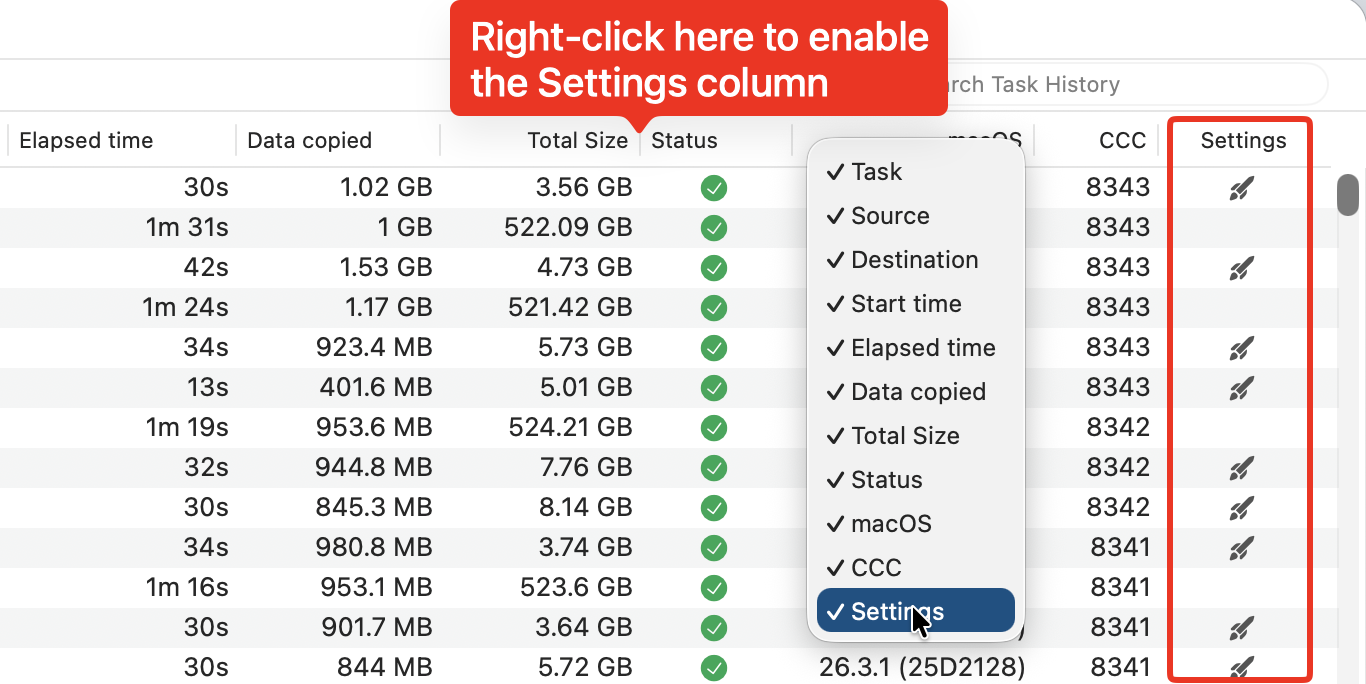
The Task History window will show which backup events used Quick Update –
look for the
 icon in the Settings column. If you don't see the Settings column in the Task
History window, right-click on the events table header to enable the Settings
column.
icon in the Settings column. If you don't see the Settings column in the Task
History window, right-click on the events table header to enable the Settings
column.
You can learn more about CCC's Quick Update feature in the CCC Knowledgebase: Use Quick Update when it's possible to collect a list of modified folders from macOS.
We're here to help
A backup that suddenly takes hours isn't always a job for Quick Update – sometimes it's a sign that something else has gone sideways, like the cloud-sync glitch that spawned a million empty folders in one customer's backup. If your backups are running slower than you'd expect, choose "Ask a question" from CCC's Help menu – we're always happy to review your task events and configuration and see what can be done to speed things up.