Transparency and Insight from CCC's Task Audit Feature
Did you ever wonder, "How did CCC find 20GB of content to update during that backup? What exactly is changing on my startup disk every day?" CCC's task audit was designed to answer those questions, and it often comes in clutch when those arrive on our Help Desk. Here are a couple cases that came up recently that show how handy this insightful feature can be.
Case #1: Every backup copies more data than expected
We get a lot of support requests that aren't really a problem with a backup. The exercise of doing the backup and paying attention to it, however, reveals that "something isn't right". Eric was noticing that his backup tasks copied ~76GB data every night, and he wondered, "How can that much data be changing every day?"
A quick review of CCC's logs revealed that the "largest file encountered" was a whopping 70GB. That's not too uncommon when folks are using Virtual Machine containers, but usually in those cases people already know that they have a really large file; that didn't fit in this case.
I suggested that Eric browse through the task audit to see if anything pops out. CCC's task audit aims to bring transparency to your backups, so you can see what's getting copied each time the backup task runs:
- Click Show Event in CCC's Task Plan view, or click Task History in the toolbar, then select one of the events that shows the large amount of data getting copied.
- Click Audit in the center of the window.
- Click the Size header to sort the list by size, descending (it's an outline view, so hierarchy wins the sort order, but larger content still floats towards the top).
- Trace your way towards the folder that's responsible for the bulk of the data, then drill down to see if you can find a particular folder or file that's really large.
When you find the offending content: Does it appear to be "normal", and do you want that content in your backup? Sometimes it is, and that's the end of it. Sometimes, however, it's an application that has run amok. If the content is errant, there are a couple options:
Exclude it from the backup. If it's content that shouldn't necessarily be deleted, but you also don't want it wasting space on your backup disk, you can exclude it right there in the task audit. Right-click on the file or folder and choose "Exclude this item from the backup".
Delete the item from the source. This should coincide with fixing the underlying problem (otherwise the item will likely reappear). Visit the application that created the content; is there some configuration change you can make to fix its behavior? When you're ready to clean up, right-click on the item in CCC's audit and choose "Reveal the current version of this item on the source", then move it to the Trash.
Eric replied back after finding the culprit:
Found it! It's buried in a hidden Library folder:
/Users/eric/Library/Containers/com.apple.mail/Data/Library/Logs/Mail/imap.mail.me.com-C4332EC6-668B-4DAF-9508-3BB04C783FF3.txtWhy is Mail creating this large file? Is there where my mail is stored?
Aha, I've seen this one before – that isn't where your mail is stored, rather Mail's "Log Connection Activity" is to blame. Frustratingly, you can turn this feature on and forget about it, and Mail doesn't appear to make any effort to reign in the size of the file(s) or let you know that you "left the water running". Easy fix for this one:
- Open Mail
- Choose Connection Doctor from the Window menu
- Uncheck the box next to Log Connection Activity
- Click the Show Logs button
- Delete the large log files
We see this one frequently enough that it gets a special place in the CCC Kbase: Mail's "Log Connection Activity" setting creates enormous files.
Case #2: Did CCC recopy a music file after I played it on the source?
CCC's Task Audit was designed to provide transparency to your backups. It answers not only "what was copied?", but also "why was that file copied?". Sometimes, it goes even further to indicate that a file wasn't recopied, but some attributes of the file had been modified.
Our second case comes from Ian, who was already familiar with CCC's Task Audit, but had a question that gets to the heart of the transparency we're aiming to offer in the Task Audit feature.
I played some mp4 files today and was then surprised to see them appear in the task audit. The audit shows "Updated" for this file, and when I hover my mouse over the icon in the "🤔" column, it indicates that "The extended attributes of this file were updated."
Can you to explain what this means? Was my 7.99Gb file backed up again in full or were just the attributes updated? I assumed that playing the file with Quicktime would be a read-only operation.
The Action column indicates that the file was Updated (not Created or Replaced), which means the content of the file wasn't modified. When you hover your mouse over the icon in the "🤔" column, the modification details bubble shows what changes were made — in this case, just the extended attributes. The Size and Copied columns also disambiguate whether the whole file was recopied.
I reproduced the scenario on my own system to see what modifications are made when QuickTime plays a media file. I got the same result: the file's size/modification date hadn't changed, but its extended attributes were modified. CCC updated the extended attributes of the file on the destination so they matched the source. We can see that the size of the file is 18MB, but only 48 bytes were copied to bring the file into sync with the source.
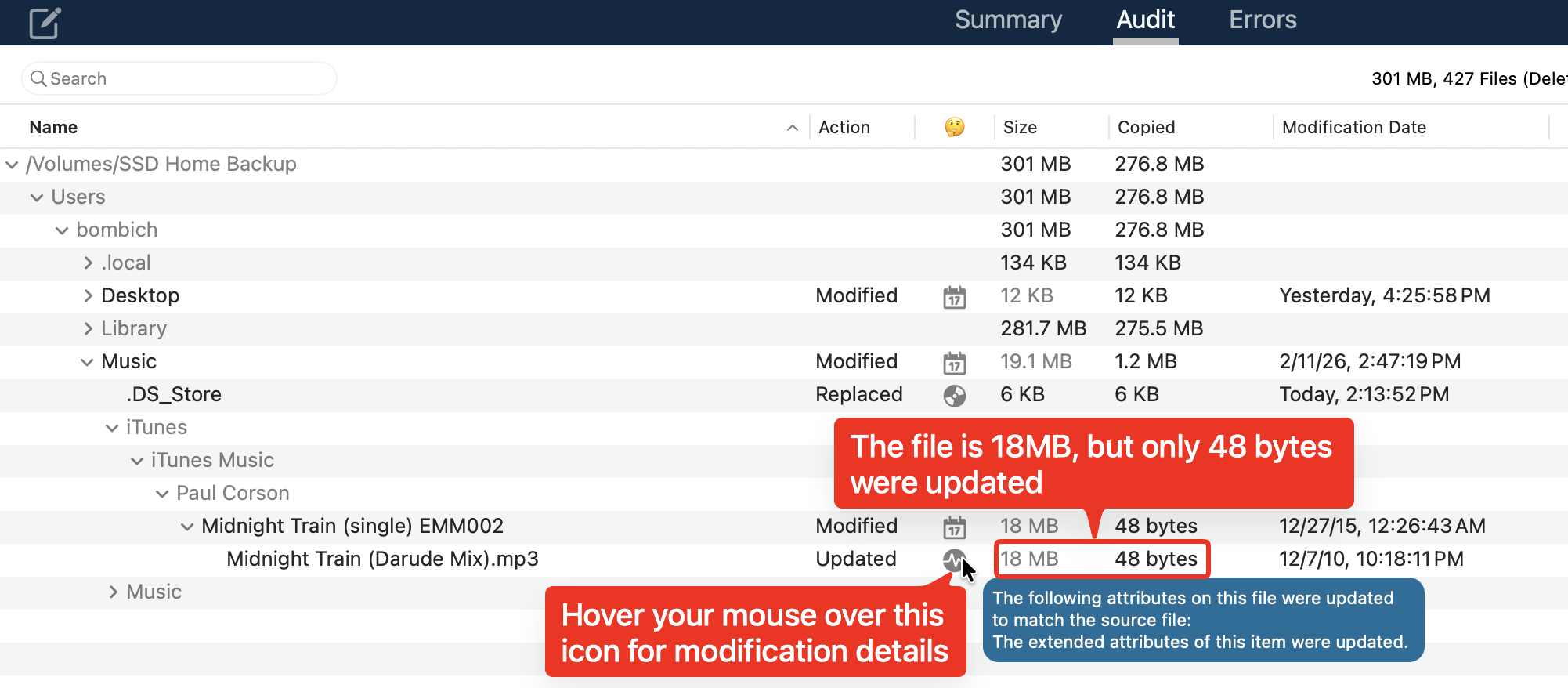
Taking a closer look at the file, I found these extended attributes:
- com.apple.FinderInfo
- com.apple.lastuseddate#PS
It looks like QuickTime updated the "com.apple.lastuseddate#PS" attribute when the file was played. So the file content wasn't modified, but apparently playing the media isn't a 100% read-only activity.