Bombich Software Blog

News and tips from the experts at Carbon Copy Cloner

Transparency and Insight from CCC's Task Audit Feature

Did you ever wonder, "How did CCC find 20GB of content to update during that backup? What exactly is changing on my startup disk every day?" CCC's task audit was designed to answer those questions, and it often comes in clutch when those arrive on our Help Desk. Here are a couple cases that came up recently that show how handy this insightful feature can be.


Case #1: Every backup copies more data than expected

We get a lot of support requests that aren't really a problem with a backup. The exercise of doing the backup and paying attention to it, however, reveals that "something isn't right". Eric was noticing that his backup tasks copied ~76GB data every night, and he wondered, "How can that much data be changing every day?"

A quick review of CCC's logs revealed that the "largest file encountered" was a whopping 70GB. That's not too uncommon when folks are using Virtual Machine containers, but usually in those cases people already know that they have a really large file; that didn't fit in this case.

I suggested that Eric browse through the task audit to see if anything pops out. CCC's task audit aims to...

Bootable copies live on in macOS Golden Gate — and they got better

As the original creator of the bootable backup solution, it's a homecoming for me every year to revisit the External Boot functionality on Apple's latest OS. As in years past, we're making it work, but again, macOS changes are putting up some hurdles. Who knew it was so much easier to just run around the hurdles?! This year, we're crossing the finish line with some flair.


Bootable copies not showing up in Startup Disk? We solved that one.

I remember seeing this one way back in Big Sur; you'd create a perfectly functional bootable copy of the system, but it wouldn't show up in the Startup Disk Preference Pane. Apple ultimately resolved that issue in macOS Monterey, but now we're seeing it again — unfixed in the Golden Gate release candidate. This time it's a little bit worse, because the workaround to choose the volume via the Startup Manager wasn't working (e.g. boot while holding the Power button). With a lot of in-depth research, I finally figured out what Apple's ASR utility wasn't doing, and now CCC handles that last little detail too. So once again, bootable copies made with CCC 7.2 will appear in both the Startup...

Where are my iCloud files? Making real local backups of your cloud storage ☁️

You go looking for a file on your backup disk (a Pages document, a folder from Dropbox, that scan you filed away in iCloud Drive months ago) and it's nowhere to be found. The backup ran and it said it succeeded. So where did the file go?

Nine times out of ten, nothing is missing. The file is on the backup disk, just not where the Finder taught you to look for it. But be careful: depending on your setup, it's possible the files were not fully on your Mac to begin with. Let's untangle both scenarios.

TL;DR

Cloud files aren't stored where the Finder shows them — they live in your hidden Library folder, so you have to unhide it to find them on a backup disk. Separately, any file marked "online only" exists on your Mac as an empty 0-byte placeholder, and an empty placeholder is all a normal backup can copy. To get the real data, set up a task with Cloud Storage as its source, pointed at its own destination volume.

Problem one:...

"Disk Not Ejected Properly" 😡: what that macOS alert really means

For many macOS users, myself included, this phrase can be triggering. Maybe you've bumped into it once or twice after errantly detaching a disk without unmounting it first -- if that's you: you'll find the short version in the what to try section below, and the rest of the article explains the "why" if you're curious.

But this one is especially for the beleaguered -- the people who have dismissed that alert not a handful of times, not even dozens of times, but seemingly hundreds. If that sounds like you, you're not alone, and we're going to get to the bottom of what's actually going on.

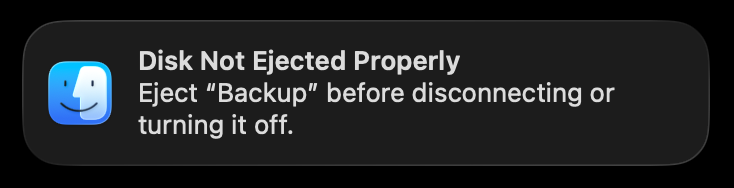
The macOS "Disk Not Ejected Properly" notification, reading: Eject "Backup" before disconnecting or turning it off.

How does a disk actually get mounted in the first place?

When a storage device is attached to a Mac, several services collaborate to present the content of that storage to the user in the Finder. IOKit, the manager of hardware devices, is the first system service to see the device (via the "kernel_task" process). IOKit will create an...

Quick Update: Faster, More Frequent Mac Backups

One of the big reasons people don't back up more often? Backups take too long. On a disk that's filled with data, even a routine backup can drag on — not because much changed, but because CCC has to stop and check every file and folder just to find out. CCC's Quick Update feature cuts straight to the chase: it asks macOS which folders actually changed and skips everything else. Faster backups mean you can comfortably back up more often, which means your backups are more likely to be fresh when you need them.

How does Quick Update work?

macOS has a handy service that tracks filesystem activity on your local drives. When a backup task runs, CCC can ask this "FSEvents" service for a list of folders that contain files that have been modified since the last time the backup task ran. CCC then limits its comparison activity to only that smaller collection of folders, rather than performing an exhaustive enumeration of every file and folder on the source and destination.

Why is Quick Update so much faster?

When you're dealing with slower storage like most backup disks, it might take a...

Silencing a cloud storage echo chamber

A routine backup that should have finished in minutes was instead dragging on for hours. The culprit turned out to be a tiny menu bar clock app that had quietly sprouted a million empty folders. Here's how we tracked it down – and how one very persistent customer finally dug his way out.

The user, "John", noticed his backup task was taking much, much longer than expected. He had CCC submit logs alongside his request, so I was able to review the details of the events. Two stats in the prescan result stuck out prominently:

📊 Totals: files: 2,622,988, symlinks: 3,766, folders: 1,083,778, data: 601.9 GB. Scanned in 15353s

4 hours to enumerate the source! I checked the source device details – it was the startup disk in an Apple Silicon Mac, so definitely not slow. Other context indicated that the startup disk performance was generally just fine.

The smoking gun

The folder count was suspicious, too – about 5x higher than usual for that file count. After slogging on a while longer, CCC's stall detection flagged exactly where the task was getting stuck:

🔺 Stall encountered...

Make your Mac backups truly private: encrypt your CCC backup drive with FileVault

Your Mac backup drive holds years of photos, financial records, work files — an external copy of nearly everything on your Mac. But what if that backup drive slips out of your bag at the airport, gets swiped from your car, or is taken in a home burglary? Without encryption, whoever has that drive has everything on it. With FileVault encryption enabled, they have nothing but unreadable data. This is what's known as "at-rest" protection, and Carbon Copy Cloner makes it a one-click setting on any APFS backup volume.

How do I enable encryption on my CCC backup?

When you initially select a volume as a destination to a backup task, CCC's Backup Volume Setup Assistant will offer an option to enable encryption. Simply check the box to enable encryption and provide the password that you would like to use to unlock the volume. If your backups are already configured, you can do the following to enable encryption on a volume:

  1. Click Volumes in CCC's sidebar.
  2. Select your backup volume in the sidebar.
  3. Toggle the FileVault switch to the On position.
  4. Enter a password to use for unlocking the volume, then encryption conversion will begin.

Celebrate World Backup Day with CCC 7.1: New Features, Fun Customizations and Some Spring Cleaning Tips

Every March 31st, we celebrate World Backup Day, a day to show our love for our data and how important it is to keep it safe. To kick off that celebration, we're releasing CCC 7.1, loaded with some great improvements and a handful of new features. And since it's spring, we have a little Easter egg too and some helpful tips for spring cleaning your Mac.

What's hatching in CCC 7.1?

Thanks to some new macOS functionality, CCC no longer has to install its privileged helper tool in a special system folder. The helper tool will still be registered with macOS, but it'll stay inside the CCC app bundle. This new way of doing things fixes a bunch of issues that have come up over the years with the old LaunchDaemon setup as Apple has improved macOS platform security. That perplexing "A macOS System problem prevented CCC from installing its helper tool" dialog is a thing of the past. It also gets rid of some Full Disk Access headaches — CCC's helper tool no longer needs its own Full Disk Access permission. Sadly, that means we're saying goodbye to the CCC Privacy Fish! No...

Bootable backups have been deprecated for several years

Update Sept. 10, 2026:

Well, it's almost 2 years later and we are pleasantly surprised to see that Apple hasn't completely sunken support for bootable copies. Apple's solution hasn't been drama-free, but we keep finding workarounds to make it work. We'll continue to support that functionality as long as we can keep it working.

With all that said, Apple hasn't revised its stance that this capability could be dropped or broken in any future update. So, if you have an Apple Silicon Mac, we recommend that you treat bootable backups as a redundancy strategy. Take advantage of it while it's around, but don't put all your your eggs in that basket.

While some developers seem surprised by a change in macOS 15.2, we've known for several years that making bootable backups would eventually become impossible. We shifted CCC's strategy away from relying on External Boot so our users wouldn't be affected by this inevitable result.


I took a few days off last week to help a family member, and returned to find the Mac community all aflutter with comments about bootable backups not working after the 15.2...

File Copying Olympics: How File Size Impacts the Race for Performance Gold

I had the opportunity to evaluate the new U34 Bolt from Oyen, and I was only disappointed that this device doesn't literally scream or burn a hole through the desk. While delivering a stunning 3.1GB/s of sustained throughput, it was completely silent and no warmer than a cup of coffee (120°F/49°C). As exciting as that was, though, I thought this would be a good opportunity to explore why we don't always see peak performance from a storage device.


Please note that we never accept any type of compensation for product recommendations. The only benefit we receive from recommendations is positive experiences with our software.


Interface performance vs. device performance vs. filesystem performance vs. software performance

Perhaps once a month we'll get a comment, "Black Magic Speed Test shows XX MB/s, but the backup only gets YY MB/s. What gives?". Less frequently people will wonder how to find that 40Gb/s performance that Thunderbolt boasts. First, let's address the math that may not be obvious. "Gb/s" is not the same as "GB/s"; Gb/s is "Gigabits per second", GB/s is "Gigabytes per second". There are 8 bits in a byte, so 40Gb/s is comparable to 5GB/s. But, interface performance isn't...